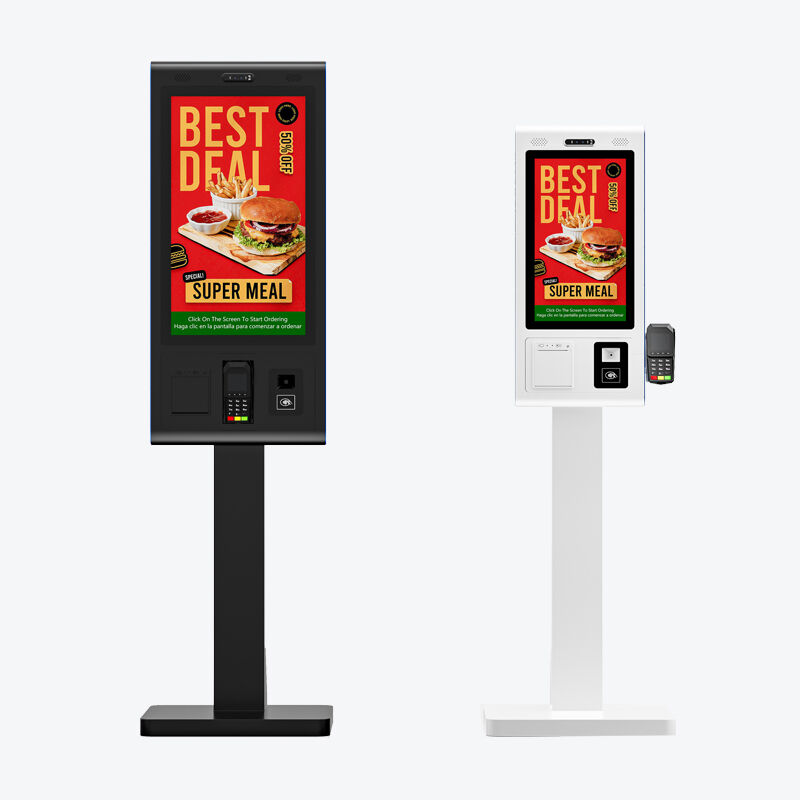
What counts as a self-service kiosk
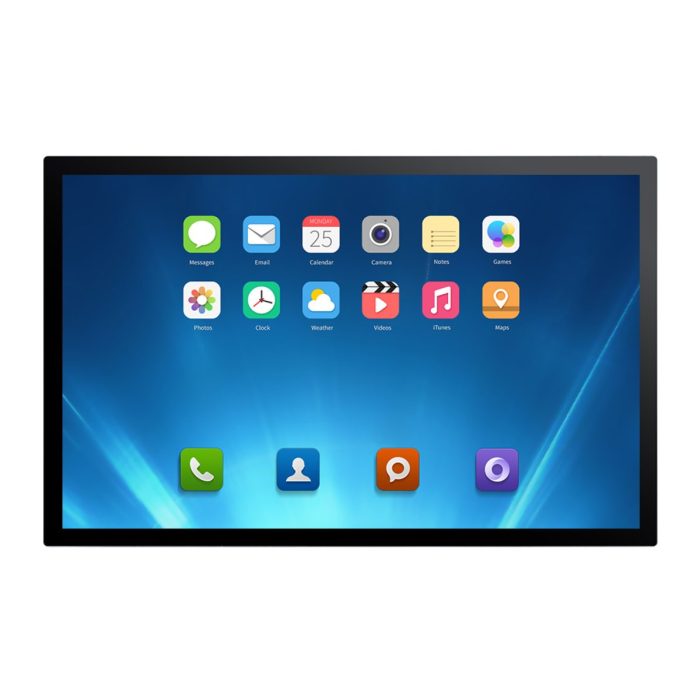
A self-service kiosk is a touch screen, a small computer and an enclosure working as one unit, so a customer can complete a task without staff: order food, buy a ticket, check in, pay for parking, collect a parcel or find a route. The screen is the part the customer judges, but the kiosk fails or succeeds on the parts behind it — the PC, the power design, the thermal path and the mounting system.
Buyers searching for a self service kiosk, a kiosk touch screen or a touch screen kiosk usually find three kinds of supplier: enclosure builders, display factories and software integrators. This guide is written from the display and computer side, so it explains how to choose the panel, the touch technology, the brightness, the PC platform and the enclosure interface before you send a request for quotation.
Kiosk types and the screen each one needs
The application decides the size, the touch type and the duty cycle. A restaurant ordering kiosk is used with greasy fingers and must survive cleaning chemicals. A wayfinding kiosk in a mall runs 16 hours a day in bright ambient light. An outdoor ticketing kiosk has to read in direct sun and survive rain. Treat these as different products even when the enclosure looks similar.
| Kiosk type | Typical size | Touch technology | What decides the specification |
|---|---|---|---|
| Restaurant self-ordering kiosk | 21.5–27 inch, portrait | PCAP capacitive, 10-point | Grease and cleaning resistance, flush glass, fast touch response |
| Retail self-checkout and price checker | 15.6–21.5 inch | PCAP or resistive | Barcode scanner integration, payment terminal space, uptime |
| Wayfinding and mall directory kiosk | 43–55 inch, portrait | PCAP or IR | Brightness, viewing angle, 24/7 backlight life |
| Hospital check-in and queuing kiosk | 21.5–32 inch | PCAP, sealed front | Hygiene, IP65 front, quiet fanless operation |
| Outdoor ticketing and EV charging kiosk | 21.5–32 inch | PCAP with optical bonding | 1500–2500 nits, wide temperature range, IK rating |
| Parcel locker and vending kiosk | 10.1–21.5 inch | PCAP or resistive | Low cost, long standby, lock control I/O |
| Digital signage kiosk | 43–65 inch | PCAP or none | Brightness, OPS or Android player, remote management |
If the same kiosk model has to serve several of these uses, design the enclosure around one screen size and one PC platform, then change only the touch layer and the brightness. Suppliers that build both the industrial touch panel PC and the industrial touch monitor can usually offer that flexibility without a new tooling cost.
Choosing the kiosk screen size and orientation
Size is driven by the task and by the distance between the user and the screen, not by what looks impressive in a showroom. A 21.5 inch portrait screen at arm’s length is comfortable for ordering; a 43 inch screen is for a viewer standing two metres away. Portrait suits menus, tickets and directories with long lists. Landscape suits checkout flows, video and comparison pages.
| Size | Resolution | Best kiosk use | Design note |
|---|---|---|---|
| 10.1 inch | 1280 × 800 | Vending, lockers, access control | Small text, keep the interface to one decision per screen |
| 15.6 inch | 1920 × 1080 | Price check, ticketing, compact checkout | Good compromise between cost and readability |
| 21.5 inch | 1920 × 1080 | Restaurant ordering, check-in, self-checkout | The most common 21.5 inch kiosk touch screen format |
| 27 inch | 1920 × 1080 or 2560 × 1440 | Self-ordering, wayfinding, banking | More menu space; check the enclosure depth for the PC |
| 32 inch | 1920 × 1080 | Retail catalogue, queue management | Popular 32 inch self service kiosk size for portrait use |
| 43–55 inch | 3840 × 2160 | Directories, signage, large wayfinding | Use IR or PCAP; plan cooling and service access |
Touch technology: PCAP, infrared or resistive
Projected capacitive (PCAP) is the default for a modern kiosk. It gives a flush, sealed glass front, ten-point multi-touch, gesture support and good optical clarity. It needs a controller that tolerates water droplets and gloves, and it costs more than resistive. Infrared (IR) touch uses a frame around the display and works with any glove, any stylus and large formats, which is why it dominates 43 inch and larger kiosks and retrofits. Resistive is the cheapest option, works with a finger or pen and survives rough use, but the soft top layer scratches and the image is duller.
| Technology | Strengths | Weaknesses | Best kiosk fit |
|---|---|---|---|
| PCAP capacitive | Flush glass, multi-touch, best image, sealed front | Higher cost, needs tuning for gloves and water | Indoor ordering, check-in, retail, outdoor with bonding |
| Infrared | Glove and pen friendly, any size, easy retrofit | Visible frame, bezel depth, false touches in strong sun | Large directories, signage, industrial and outdoor kiosks |
| Resistive | Lowest cost, works with gloves and stylus | Single touch, softer surface, lower clarity | Vending, lockers, price checkers, industrial control |
For a flush front panel, the touch layer and the cover glass should be optically bonded. Bonding removes the air gap, cuts internal reflections and stops condensation inside outdoor kiosks. If you are comparing a kiosk touch monitor with a separate PCAP capacitive touch overlay, ask whether the overlay is bonded or air-gapped; the difference is visible in sunlight and in humid climates.
Brightness, glass and weather protection
Indoor kiosks in a mall or an airport often need 400–700 nits because the ceiling lighting is bright. A kiosk beside a window or in a covered outdoor area needs 1000 nits and anti-glare treatment. A drive-thru kiosk or an outdoor kiosk display in direct sun needs 1500–2500 nits, anti-reflective glass and optical bonding; without bonding, the reflection of the sky is brighter than the image.
Sealing and impact are separate from brightness. A front rating of IP65 protects against dust and water jets and covers most outdoor kiosks. IP69K is for high-pressure washdown in food production and some restaurant kitchens. An IK08 or IK10 rating covers vandalism and accidental impact in public areas. The rating only holds if the gasket, the cable entry and the mounting surface are part of the tested assembly, so the enclosure design and the display specification have to be reviewed together. Our guide to IP ratings for industrial touch displays explains what each level actually proves.
The computer behind the kiosk screen
The screen is only half the bill of materials. The kiosk also needs a player or PC, and the platform choice changes the software, the service model and the thermal design. Android is cheap, boots fast and suits simple ordering, wayfinding and signage apps. Windows supports legacy POS software, peripherals and remote management tools. An OPS module slides into a standard slot on the display and removes internal cabling, which is useful for signage kiosks that are assembled in volume.
| Platform | Best for | Trade-off |
|---|---|---|
| Android kiosk | Ordering, wayfinding, queue and signage apps | Limited Windows software; check long-term OS support |
| Windows kiosk PC | POS, payment, healthcare and enterprise software | Higher cost, licensing, more heat |
| OPS module | Digital signage and interactive flat panels | Requires an OPS slot; less flexible I/O |
| Fanless embedded PC | 24/7 kiosks in dusty or hot locations | Lower peak performance; specify storage carefully |
A fanless embedded industrial PC is usually the right choice for a public kiosk because it has no fan to pull in dust and no filter to service. If the kiosk also shows advertising, compare the OPS, Android and Windows platforms before locking the enclosure design.
Enclosure and integration checklist
Most kiosk failures at the prototype stage are mechanical, not electronic. The screen works on the bench and then overheats, fogs or fails EMC once it is sealed in a metal box. Work through the interface between the display and the enclosure early.
- Cutout and bezel. Send the drawing to the display supplier before the sheet metal is cut; a 1 mm error changes the gasket compression and the IP result.
- Thermal path. A 27 inch panel plus a PC can dissipate 80–150 W inside a sealed box. Plan vents, a heat sink or an air-conditioned enclosure, and test at the highest ambient temperature.
- Service access. Decide whether the screen, the PC and the payment terminal are removed from the front or the back. Public kiosks need fast access without dismantling the whole unit.
- Cable management. Use locking USB and display connectors, strain relief and a separate power entry. Vibration loosens ordinary connectors.
- Power. Specify wide-voltage DC input if the kiosk runs from a battery or a vehicle, and add surge protection for outdoor installations.
- Peripherals. A receipt printer, scanner, camera, card reader and lock board all need space, power and a driver that the chosen OS supports.
- Security. Use a locked enclosure, a tamper switch and a display with no exposed screws or edge that can be pried open.
What drives the cost
Two kiosks that look identical can differ by a factor of three in price. The difference is almost always in the screen and the computer, not the sheet metal. A 21.5 inch 250-nit resistive screen with an Android board is a different product from a 27 inch 1000-nit optically bonded PCAP screen with a fanless Windows PC, an IP65 front and an IK08 rating.
The biggest cost levers are screen size, brightness, optical bonding, touch technology, the PC platform and the certification package. If the budget is tight, reduce the size or the brightness before reducing the sealing or the thermal design; a cheap kiosk that fogs or overheats in the first summer costs more than the saving.
Specification checklist before you request a quote
- Use case. Ordering, ticketing, check-in, wayfinding, vending, lockers or signage.
- Environment. Indoor, covered outdoor or direct sun; ambient temperature, humidity and cleaning method.
- Size and orientation. Screen diagonal, portrait or landscape, and the target resolution.
- Touch. PCAP, IR or resistive; number of touch points; gloves, stylus or wet hands.
- Brightness and glass. Required nits at the front glass, anti-glare or anti-reflective, bonding yes or no.
- Protection. IP rating for the front, IK rating, vandal resistance and lock requirements.
- Computer. Android, Windows, OPS or fanless box PC; CPU, RAM, storage, ports and OS version.
- Integration. Cutout drawing, mounting method, cable entry, power input and peripheral list.
- Lifecycle. Duty cycle, expected service years, spare parts and firmware update plan.
Send those nine answers with a drawing and a photo of the location, and a factory can quote a configuration instead of a guess. The same discipline applies when you choose a touch screen supplier in China: ask for the test report behind each claim, not just the datasheet.
What Seabird manufactures for kiosk projects
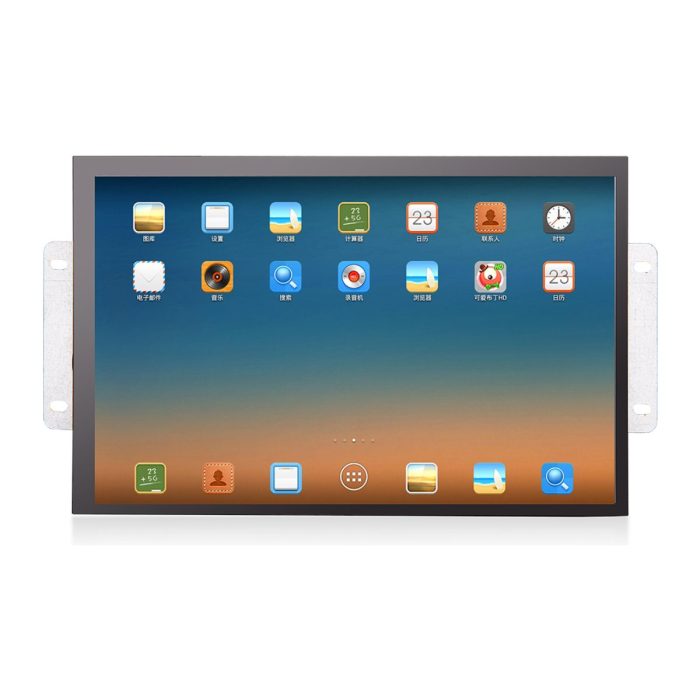
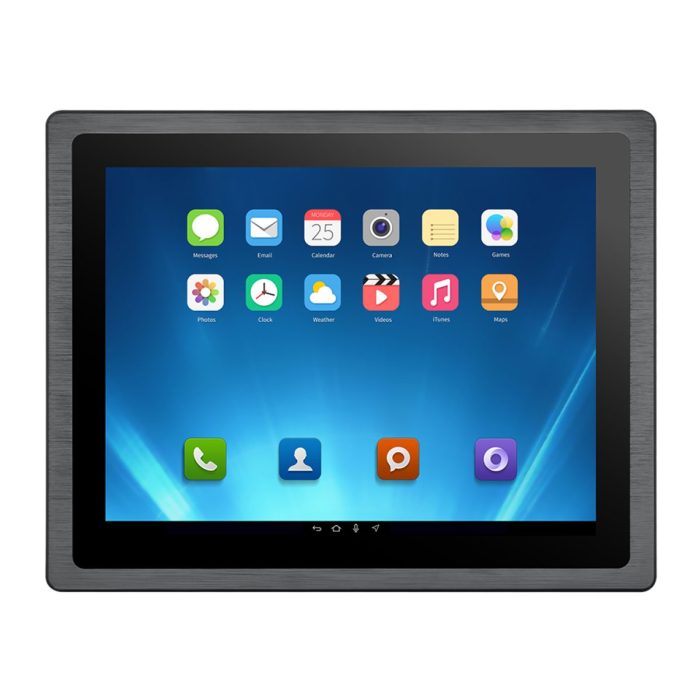
We build the display stack in Huizhou and supply it as a component or as a complete panel PC for the enclosure builder. The range covers industrial touch panel PCs from 7 to 32 inches, industrial touch monitors for open frame and panel mount integration, PCAP capacitive overlays and IR infrared touch frames for large formats and retrofits.
For kiosk projects we can specify the touch type, front glass, brightness, bonding, mounting frame, connector layout and branding per project instead of forcing a catalogue model. OEM and ODM work is our core business: custom cutouts, logo printing, custom packaging, flexible MOQ, one-piece samples at factory price, and CE, FCC and RoHS documentation for every model.
Send the nine checklist answers, the cutout drawing and the environment, and we will reply with a configuration, a dimension drawing and a factory price within 24 hours on working days.
Frequently asked questions
How much does a self-service kiosk touch screen cost?
As a component, a 21.5 inch PCAP touch panel with an Android board sits at the lower end, while a 27 inch 1000-nit optically bonded screen with a fanless Windows PC and IP65 front sits several times higher. The enclosure, printer, scanner and payment terminal are extra. Ask for a bill of materials rather than a single unit price so you can compare like for like.
Should I choose PCAP or infrared touch for a kiosk?
Choose PCAP for a flush, sealed, modern front indoors, and for outdoor kiosks where optical bonding is used. Choose infrared for large formats, gloved users, retrofits and the lowest cost per inch above 43 inches. Resistive remains the cheapest option for simple vending and locker screens.
What brightness do I need for an outdoor kiosk?
For a shaded or covered outdoor kiosk, 700–1000 nits with anti-glare glass is usually enough. For direct sunlight, start at 1500 nits, add anti-reflective glass and optical bonding, and confirm the operating temperature range. A bonded 1000-nit screen often reads better than an air-gapped 1500-nit screen.
Can one kiosk run 24 hours a day?
Yes, if the panel, backlight, power supply and PC are specified for continuous duty. Consumer monitors and tablets are not. Ask for the backlight life rating, the documented duty cycle and the thermal test result at the ambient temperature of your site.
Can the kiosk screen work with wet hands or gloves?
PCAP controllers can be tuned for gloves and for water droplets, but performance depends on the controller, the cover glass thickness and the firmware. Infrared works with any glove but can misread rain and direct sun. Test with the actual gloves, liquids and cleaning chemicals before approving the design.
Do you supply the enclosure too?
We supply the display, the touch layer, the panel PC or the open frame module. Many of our customers are enclosure builders and integrators who already have the sheet metal and the payment hardware. We can share the mechanical drawing, the cutout dimensions and the thermal figures so your enclosure design matches the screen.