
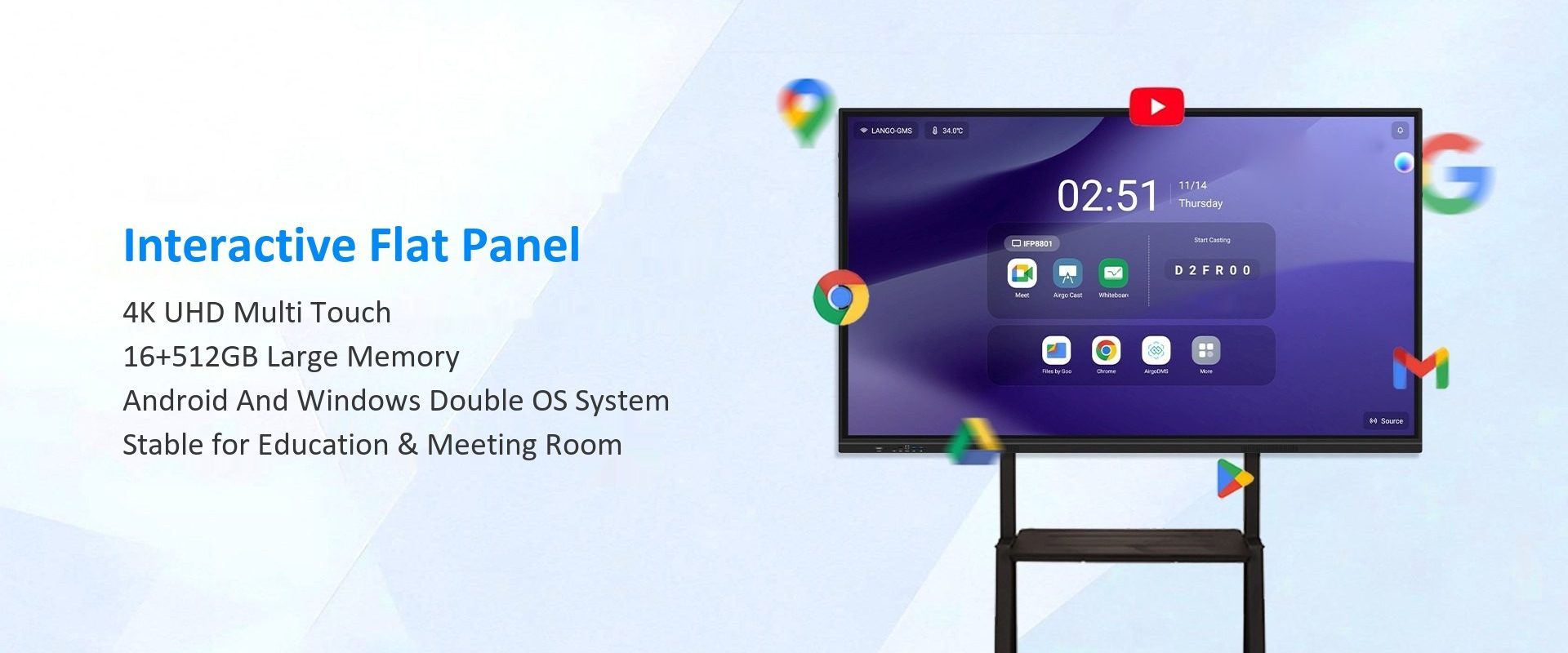
What schools and meeting rooms actually need from an interactive flat panel
An interactive flat panel is now the default display in new classrooms and meeting rooms. It replaces the projector, the whiteboard and the video-conference screen with one device. But the difference between a panel that is used every day and one that sits switched off comes down to a few practical details.
This guide covers the specifications that matter in education and corporate environments, and the mistakes that show up after installation.
Size: match the room, not the budget
The most common mistake is buying too small. A 55-inch panel is fine for a small huddle room, but a 65-inch or 75-inch panel is the practical minimum for a classroom with 30 students, and 86-inch is common in lecture rooms and large meeting spaces.
A simple rule: the furthest viewer should be no more than about six times the screen height away. For a 75-inch 16:9 panel, that is roughly 5.6 metres. If the room is deeper, move up a size.
| Room | Recommended size | Typical use |
|---|---|---|
| Small huddle room (4–6 people) | 55″–65″ | Video calls, presentations |
| Standard classroom (25–35 students) | 65″–75″ | Teaching, annotation, casting |
| Large classroom / lecture room | 86″–98″ | Lectures, hybrid teaching |
| Boardroom | 75″–86″ | Collaboration, video conferencing |
Touch: 20 points is the baseline for collaboration
Modern panels should support at least 20-point touch, with pen input and palm rejection. In a classroom, several students may write at the same time; in a meeting room, two people may annotate different parts of a document. Ten-point touch is acceptable for a small room but limits group work.
The touch technology also matters. Infrared touch is common in large-format panels because it scales economically to 86-inch and 98-inch sizes. Projected capacitive touch offers a thinner bezel and a more phone-like feel, but costs more above 65 inches.
Display: 4K, anti-glare and brightness
4K resolution is now expected at 65 inches and above. Anti-glare glass is important in rooms with windows or ceiling lights; a glossy panel that reflects a window is unusable for half the day. Brightness of 350–500 nits is adequate indoors; rooms with strong daylight may need 500 nits or more.
Software and connectivity
- Wireless casting for laptops, tablets and phones, with support for both Windows and macOS.
- Annotation software that works without a PC and can save or share the board.
- Video conferencing integration with Zoom, Teams and Google Meet, either through an OPS module or a connected PC.
- Device management for firmware updates, app deployment and remote diagnostics.
- Multiple HDMI/USB-C inputs so a room can switch between sources without replugging.
For schools, manageability is often more important than the panel itself. A display that requires a technician to install an app will not be used. Look for a platform that supports central deployment and remote support.
OPS: the upgrade path
An OPS PC module plugs into the panel and provides a Windows or Android computer without an external box. This is the cleanest way to future-proof a classroom or meeting room: the panel stays on the wall, and the compute module is replaced when the platform ages.
Installation and total cost of ownership
The purchase price is only part of the cost. Consider the mount, cabling, installation, software licences, training and warranty. A panel that is easy to mount, has front-facing ports and supports remote management will cost less over five years than a cheaper panel that needs frequent visits.
Warranty terms matter in education. A three-year warranty with local service is common; some projects require five years. Ask for the spare-parts policy and the expected firmware support period.
Common mistakes
- Buying a 55-inch panel for a 30-student classroom.
- Choosing a glossy screen in a room with windows.
- Ignoring wireless casting compatibility with the school’s devices.
- Forgetting audio — a panel with weak speakers needs an external soundbar.
- Buying a consumer TV instead of a commercial-grade panel.
How Seabird builds IFPs
Our interactive flat panel range covers 55-inch to 98-inch 4K displays with multi-point touch, optional Android or Windows OPS modules, anti-glare glass and a commercial-grade panel. We also produce interactive whiteboards and infrared touch frames for projects that need a custom size or a retrofit.
Tell us the room size, the number of users, the software platform and the target budget. We will recommend a size and configuration, then provide a sample and a factory price.
Frequently asked questions
What size interactive flat panel do I need for a classroom?
For 25–35 students, 65-inch to 75-inch is the practical range. For larger rooms, choose 86-inch or 98-inch.
Is 10-point touch enough?
For a small meeting room, yes. For classrooms and collaborative spaces, 20-point touch is the better baseline.
Do interactive flat panels need a PC?
Many panels run Android natively for annotation and casting. A built-in or plug-in OPS module adds Windows when you need full desktop software.
Can an IFP replace a projector?
Yes, in most indoor rooms. The panel is brighter, has no lamp to replace and works without dimming the lights.